
Fee Estimator (pending implementation)
****** Please read before continuing to use the Fee Estimator ********
Estimated Fees are Approximate and Not All InclusivePlease note that the fees shown in this estimator are approximate and based on the information provided at the time of calculation. Additional fees may apply during the permitting or planning process, depending on the specifics of your project. These fees could be assessed after further review by county staff and may vary due to multiple factors (see the Fee Schedule here and examples below). Final fees will be confirmed once your application has been processed.
| |||||||||||||||||||||
How to Use the Fee Estimator:
Use of the Fee Estimator does not require users to log into PermitSLO, however applying for a permit or plan does require registration and logging into PermitSLO.
Start at the main menu and click "Fee Estimator"
Then choose either Estimate Permit Fees or Estimate Plan Fees. This example uses "Estimate Permit Fees"
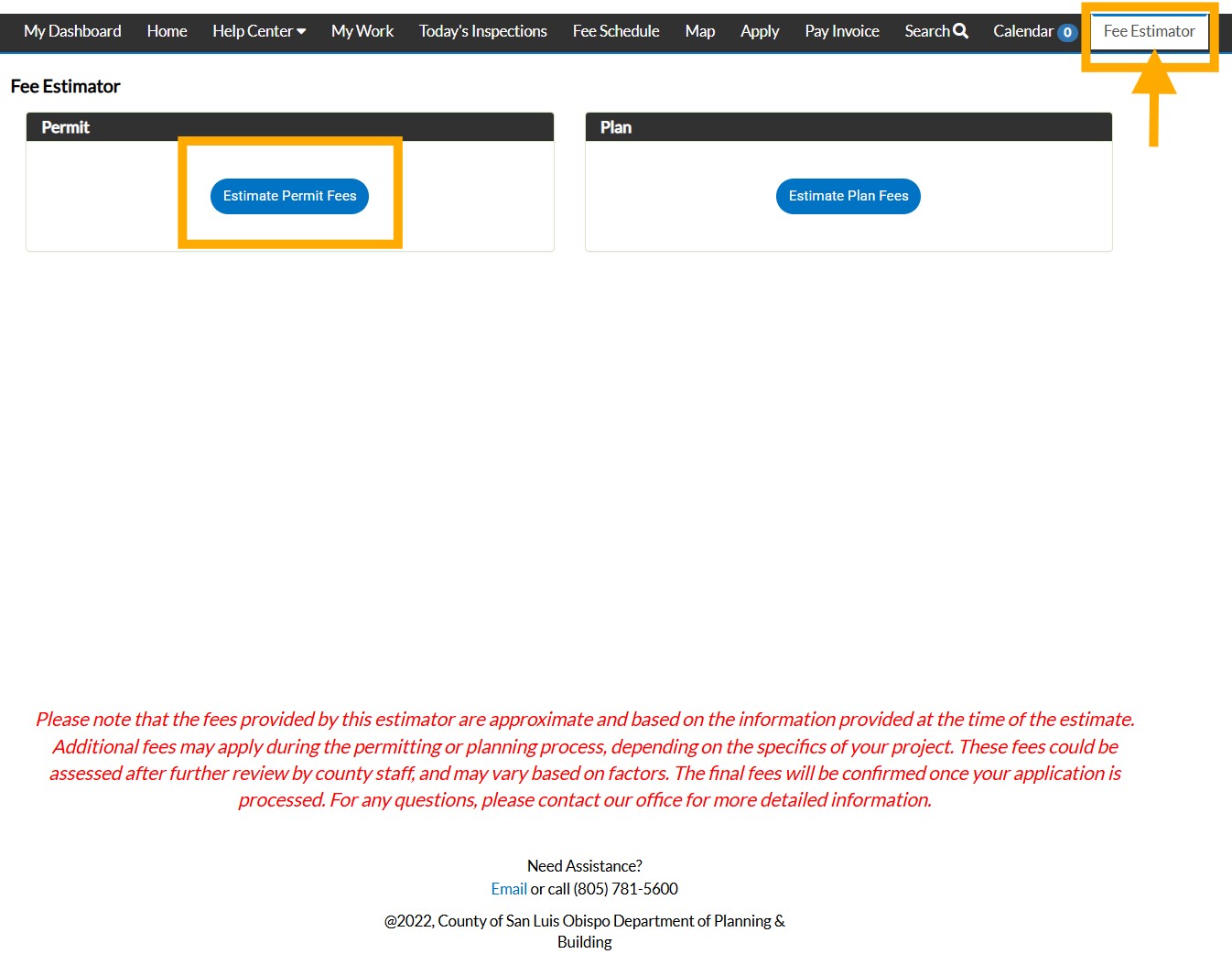
There will be three Steps to complete in order to obtain a Fee Estimate: 1. Permit/Plan Type, 2. More Info, and 3. Review and Submit.
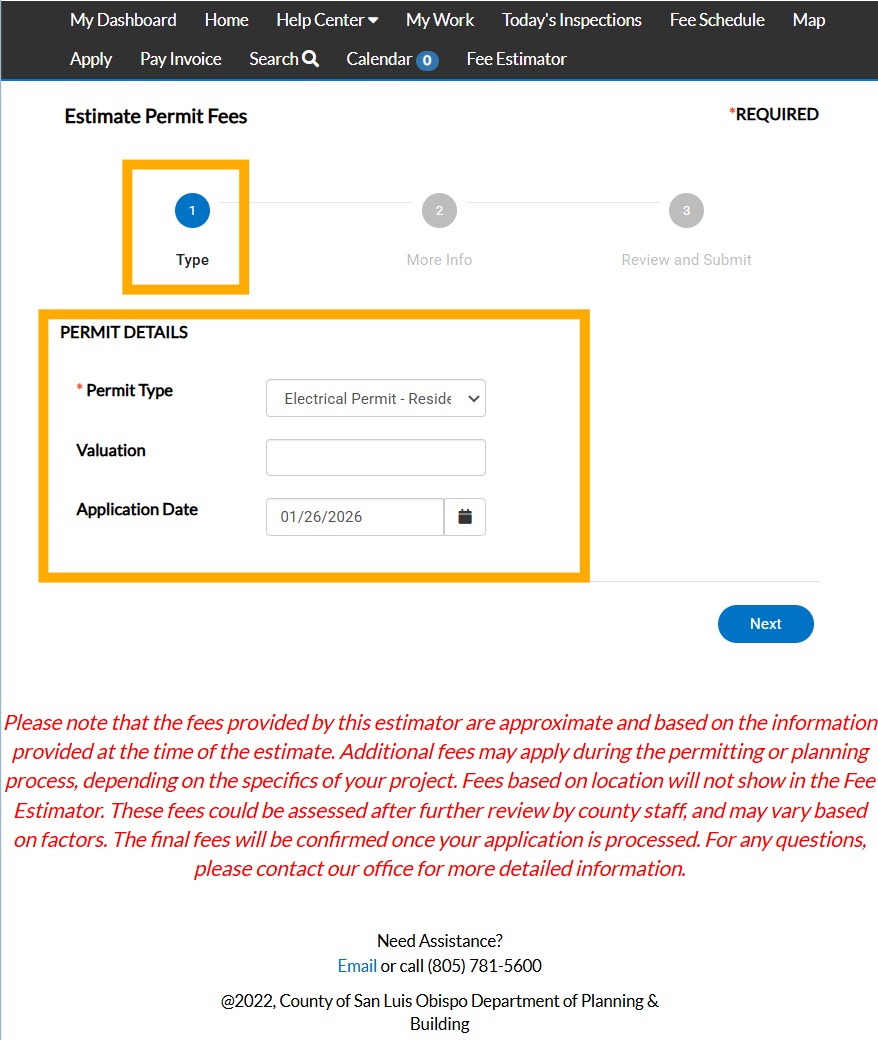
1. Type Step
The Type step includes questions and descriptors that help narrow down an estimate for applicable Planning and Building fees under Permit Details.
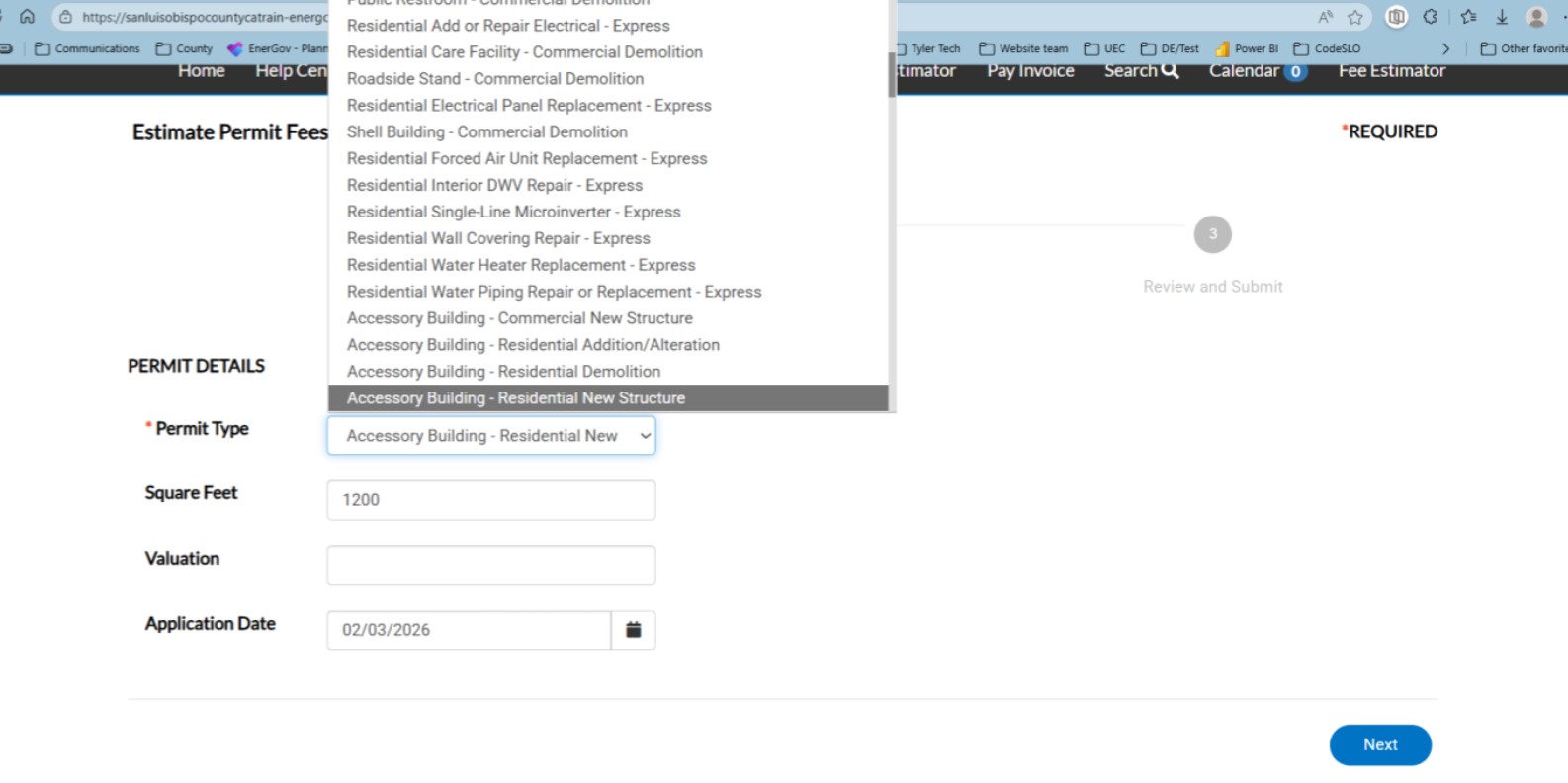
Click the box next to Permit or Plan Type for a menu to choose from. Select the best description by clicking it.
Complete any other details that are specific to the selected Permit or Plan Type. In the example we use the Permit Type "Accessory Building-Residential New Structure"
Then click Next.
2. More Info Step
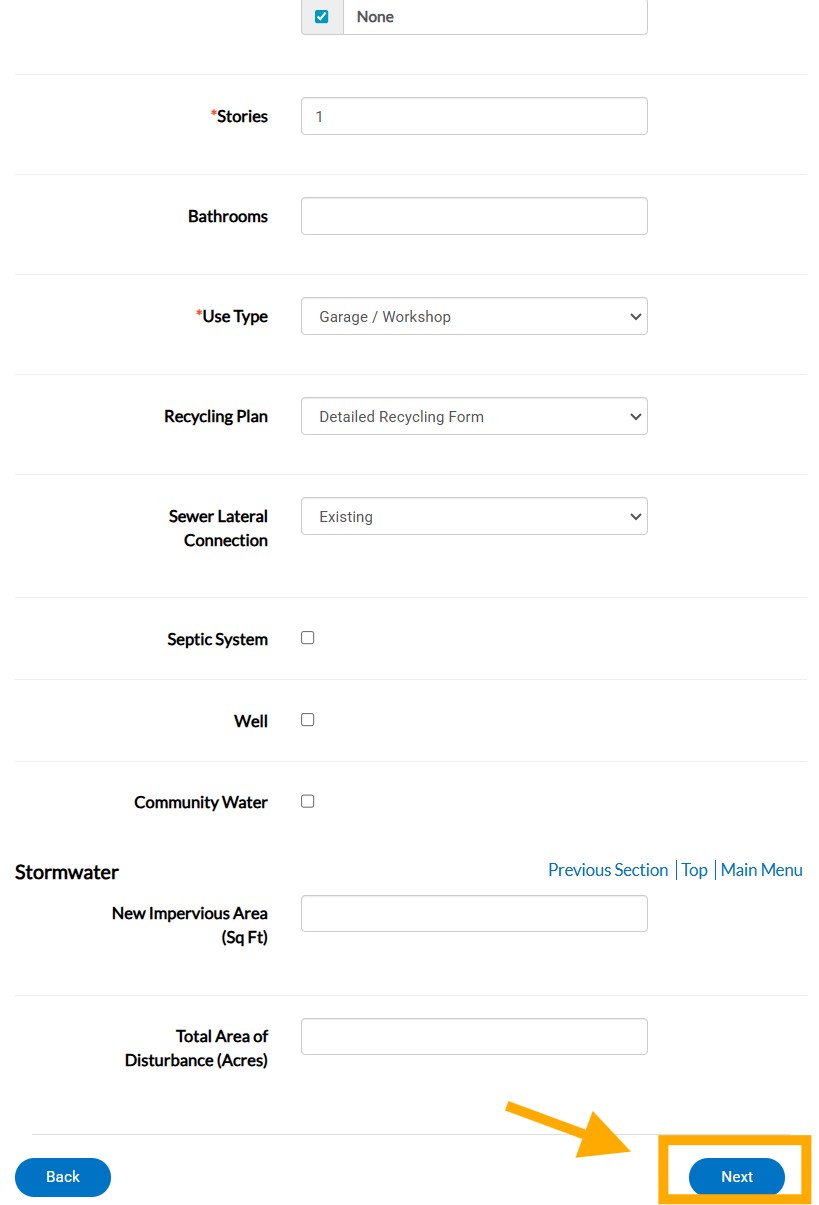
The More Info step includes a list of required fields based on the type of application that has been chosen.
If information is required and there is a drop-down menu of choices, but you are unsure which to choose, use either "N/A" or "None" response. An example of the "N/A" option is found in the drop-down options for Construction Type, and "None" is found for Building Occupancy.
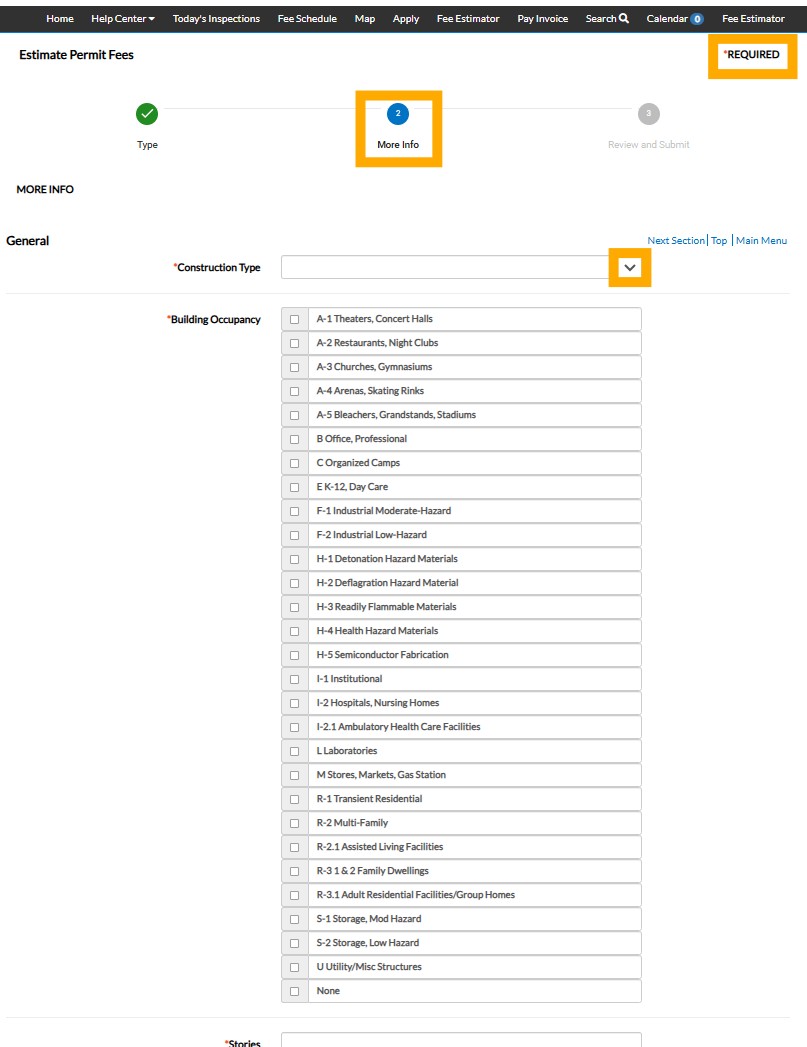
After providing all of the information that is required in this step, and including any optional information that may be applicable in the estimated fees, click Next.
3. Review and Submit Step
Clicking the last Review and Submit step will provide the Estimated Fees related to and based on, the "Type" of Permit/Plan provided in the first Step and the "More Info" that is provided in the second Step.
(review Notice above).
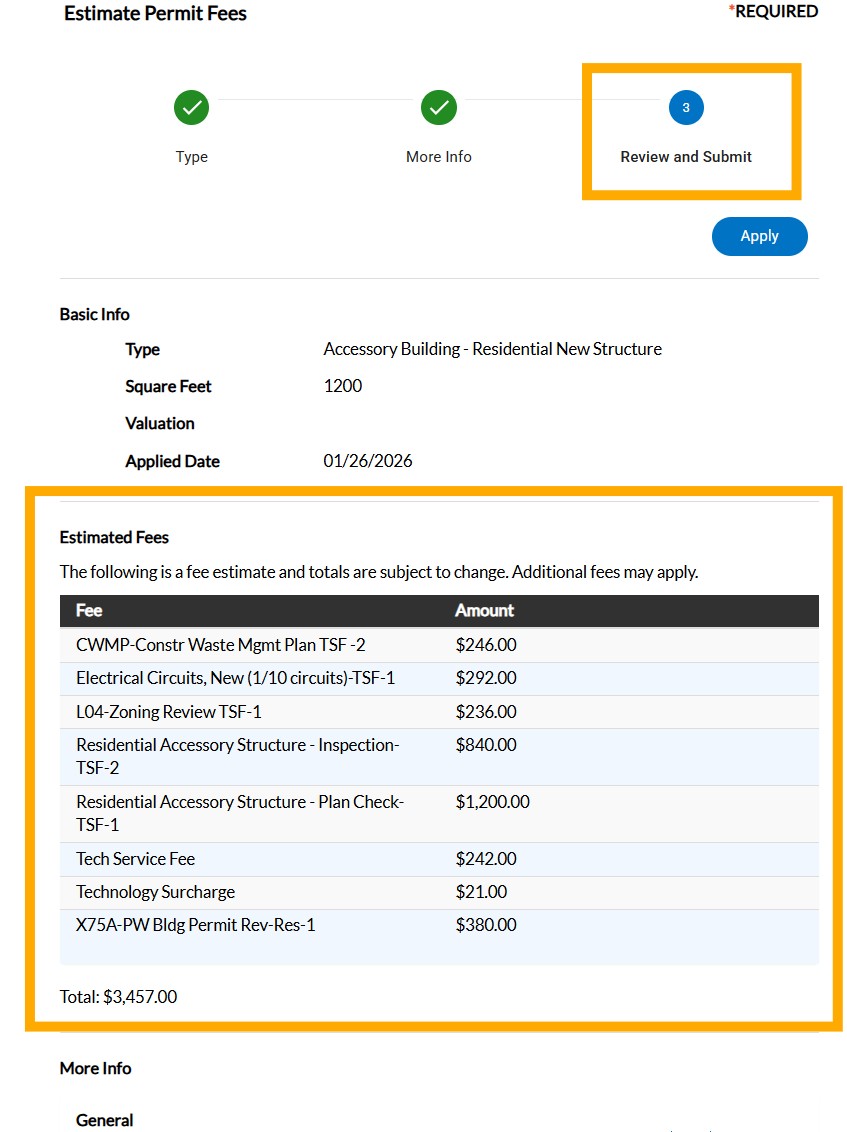
Click the Apply button if you are already logged in and ready to apply. If not logged in, you will be redirected to do so and then you can apply for the permit or plan. Make sure to use the same selections used in the Fee estimator Steps 1 and 2.